
Playing CS 1.6 on an Old Laptop: How to Get Smooth 100 FPS
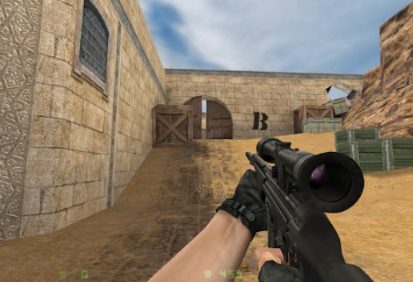
One of the best things about Counter-Strike 1.6 is that it does not care how old your computer is. That dusty laptop in the drawer, the office PC with integrated graphics, the netbook your parents bought in 2011 – all of them can run this game. But “can run” and “runs well” are two different things.
In CS 1.6, frames per second are not just about looks. The game engine ties movement and shooting accuracy closely to your frame rate. Playing at 40 FPS against someone at 100 FPS is a real disadvantage. This guide shows you how to squeeze every frame out of weak hardware.
Start With a Clean Installation
Many performance problems come from bloated or broken game builds. Some installers pack in custom HUDs, heavy model replacements, background music players or even bots that run in the background. All of that eats memory and CPU.
A lightweight, clean Cs download from Csdownload.eu gives you a solid base to start from. Once the clean version is installed, you can add only the tweaks you actually need instead of fighting someone else’s settings.
Understand What Actually Slows the Game Down
On older machines, the bottleneck is rarely the graphics card alone. Usually it is one of these:
-
Background programs. Browsers with twenty tabs, chat apps, > launchers and updaters.
-
Power saving modes. Laptops love to throttle the CPU when they > are not plugged in.
-
Wrong video mode. Software rendering is painfully slow compared > to OpenGL.
-
High resolution on weak integrated graphics.
Fix these four and most of your problems disappear.
Windows Tweaks That Make a Real Difference
-
Plug in the charger. Seriously. Many laptops cut CPU speed by > half on battery.
-
Switch the power plan to High Performance. Search “power plan” > in the Start menu and change it.
-
Close everything else. Especially browsers. Chrome alone can use > more memory than CS 1.6 itself.
-
Turn on Game Mode in Windows 10 and 11. It helps the system > focus resources on the active game.
-
Update the graphics driver. Old Intel drivers often have broken > OpenGL support.
In-Game Settings for Maximum FPS
Open Options → Video and set:
-
Renderer: OpenGL
-
Resolution: 800×600 or 1024×768
-
Colour quality: 16-bit if you are desperate, 32-bit otherwise
-
Brightness and gamma: whatever helps you see enemies in dark > corners
Then open the console (the tilde key, § or ~) and try these commands:
| Command | What it does |
|---|---|
| fps_max 101 | Caps FPS at the classic competitive value |
| gl_vsync 0 | Turns off vertical sync, removes input lag |
| cl_weather 0 | Removes rain and snow effects on maps like aztec |
| r_decals 0 | Stops bullet holes and blood from piling up on walls |
| gl_max_size 128 | Lowers texture quality to save video memory |
| fastsprites 1 | Simplifies smoke grenades |
| r_dynamic 0 | Disables dynamic lighting from muzzle flashes |
Add the ones you like to your userconfig.cfg file in the cstrike folder so they load every time you start the game.
Launch Options Worth Adding
Right-click the game shortcut, open Properties, and add these to the end of the target line:
-gl -full -w 1024 -h 768 -freq 75 -noforcemparms -noforcemaccel
This forces OpenGL, full-screen mode, a fixed resolution and refresh rate, and keeps Windows from messing with your mouse.
Network Settings for Lower Lag
Smooth FPS is only half the story. If your connection is shaky, adjust these commands:
-
rate 25000
-
cl_updaterate 101
-
cl_cmdrate 101
-
ex_interp 0.01
On a weak Wi-Fi signal, try lowering updaterate and cmdrate to 60 and see whether the game feels more stable. And whenever possible, use a cable. Wi-Fi spikes kill more rounds than bad aim does.
Common Mistakes to Avoid
-
Installing “FPS booster” programs. Most do nothing useful, and > some are malware.
-
Copying a pro player’s entire config. Pros play on strong PCs. > Their settings may make your game slower.
-
Setting fps_max too high on weak hardware. If your FPS jumps > between 60 and 200, a stable cap at 100 feels better than an > unstable higher number.
How to Check Your Results
Type net_graph 3 in the console. A small box appears in the corner showing FPS, ping and packet loss. Walk around a busy area like middle on dust2 and watch the numbers. If FPS stays close to 100 and ping is stable, you are set.
Final Word
Counter-Strike 1.6 is a rare example of a competitive game that rewards skill instead of expensive hardware. With a clean installation and a few minutes of tuning, even an old laptop can deliver smooth, responsive gameplay. Do the setup once, save your config, and spend the rest of your time actually playing.